.png)
How to Resolve an AMD Crash ReportUpdated 2 minutes ago
.png)
AMD Software opens the AMD Bug Report Tool when it detects a driver timeout, a blue screen, or a driver install error. This guide covers a clean driver reinstall, removing leftover AMD components, and rolling back to an older driver.
CLEAN AND REINSTALL YOUR AMD DRIVER
Start here. A clean install removes the old driver completely before putting a fresh one on:
IF THE CRASHES STARTED RIGHT AFTER A DRIVER UPDATE, SKIP TO ROLL BACK YOUR AMD DRIVER BELOW.
- Clean your current driver by following Step One and Step Two of How to use DDU to clean GPU drivers, then come back here
- Install the latest AMD driver with Factory Reset checked by following How to update AMD drivers using AMD Software
- Use your PC like normal and see if the crash report comes back
REMOVE AMD DVR AND RYZEN MASTER SDK
Use this section if AMD Software will not install after DDU, or if the crashes keep coming back after a clean install. Leftover AMD DVR or Ryzen Master SDK components can get in the way of the install or be behind the crashes.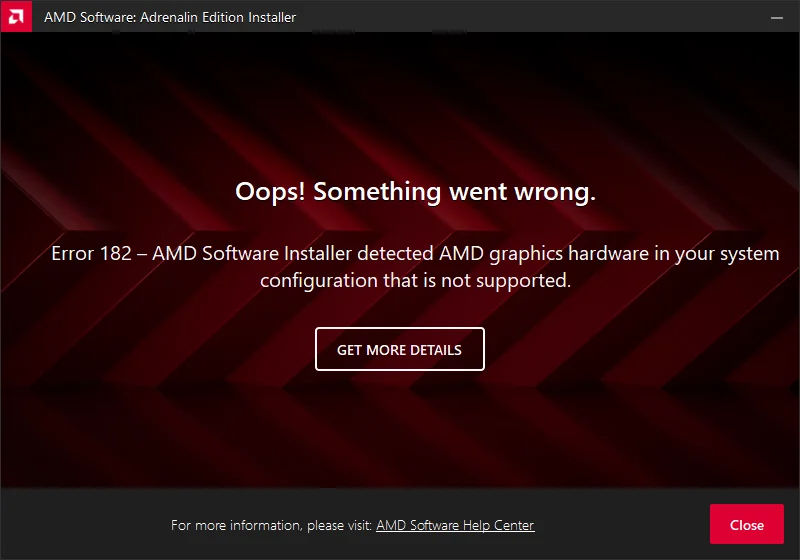
USE THE PROGRAM INSTALL AND UNINSTALL TROUBLESHOOTER
- Download the Program Install and Uninstall troubleshooter from Microsoft
- Open the file and select Next
- Select Uninstalling
- On Select the program you want to uninstall. pick AMD DVR or Ryzen Master SDK from the list, then select Next
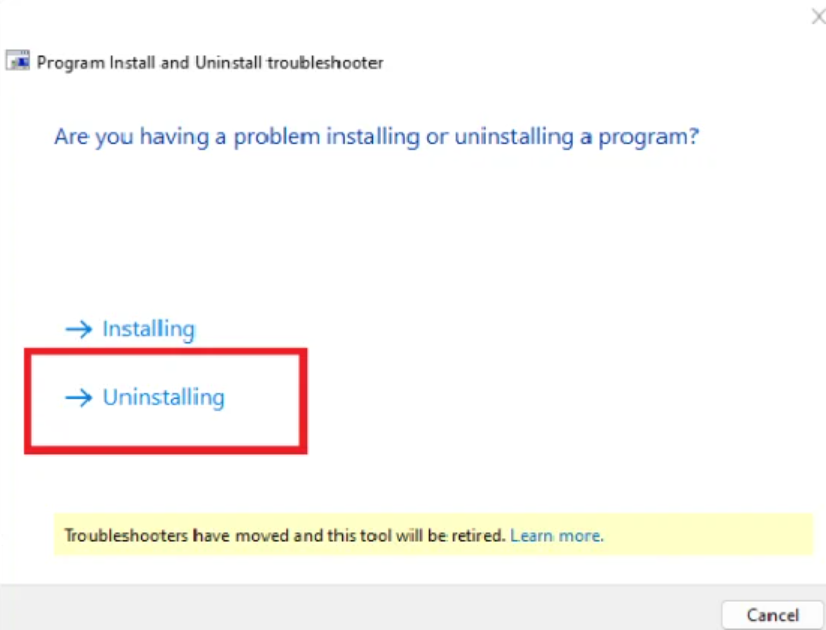 |
Select the program you want to uninstall, pick AMD DVR 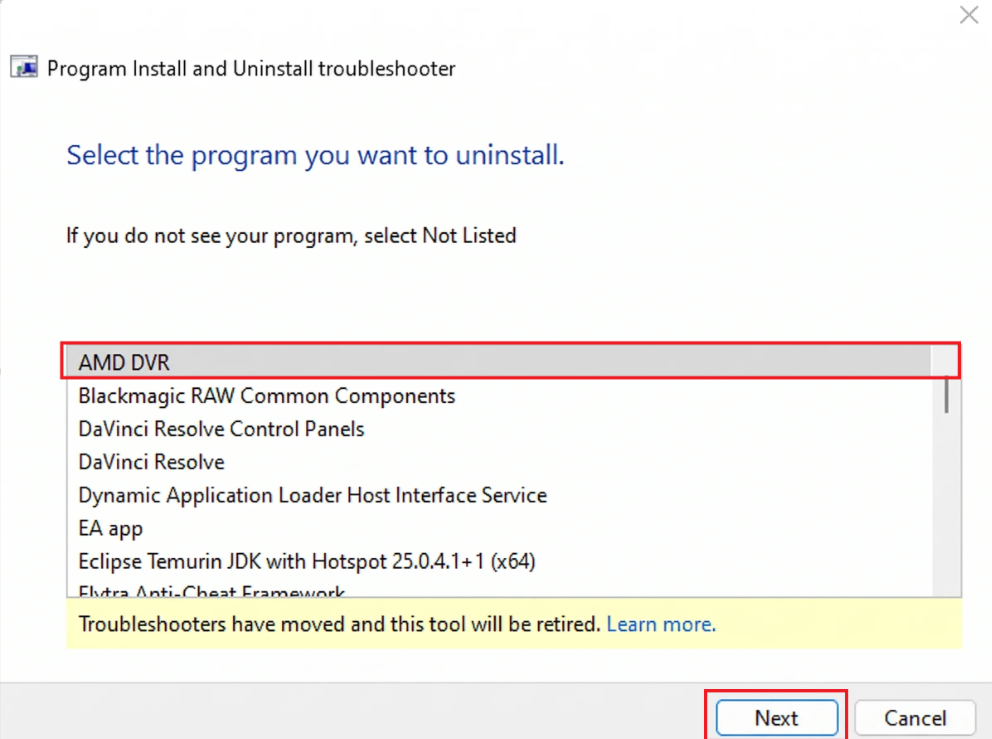 |
Select the next program RYZEN MASTER SDK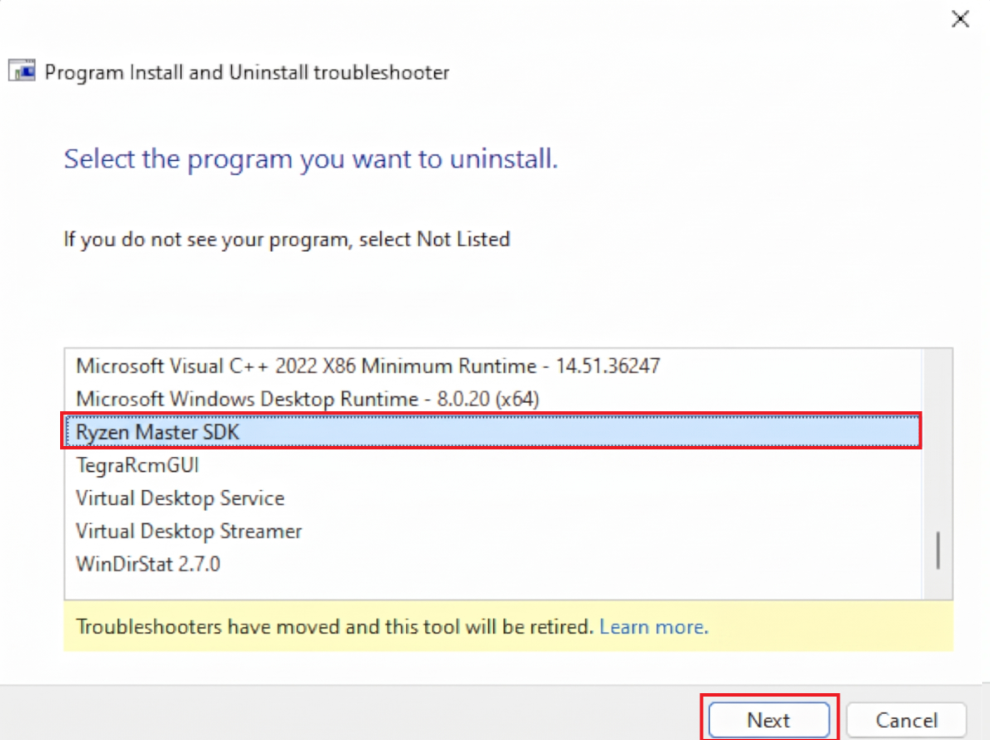 |
✏️ PLEASE NOTE: The yellow banner saying the troubleshooter will be retired is normal. The tool still works. If one of them is not in the list, skip it.
- Select Yes, try uninstall
- Run the troubleshooter again for the other one
STEP THREE: RESTART AND REINSTALL AMD SOFTWARE
- Restart your PC
- Install AMD Software with Factory Reset checked by following How to update AMD drivers using AMD Software
ROLL BACK YOUR AMD DRIVER
Use this section if the crashes started right after a driver update.
STEP ONE: FIND YOUR GPU MODEL
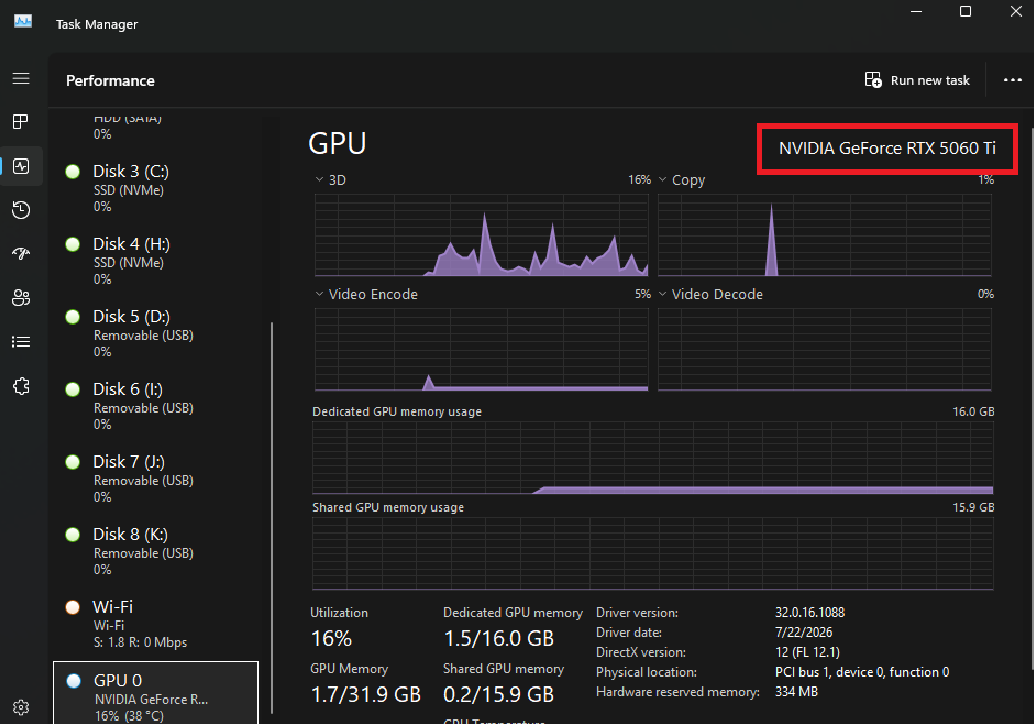
- Press Ctrl + Shift + Esc to open Task Manager
- Select the Performance tab, then select GPU and write down the model name. If there is more than one GPU, use the one with Radeon RX in the name
STEP TWO: DOWNLOAD THE OLDER DRIVER
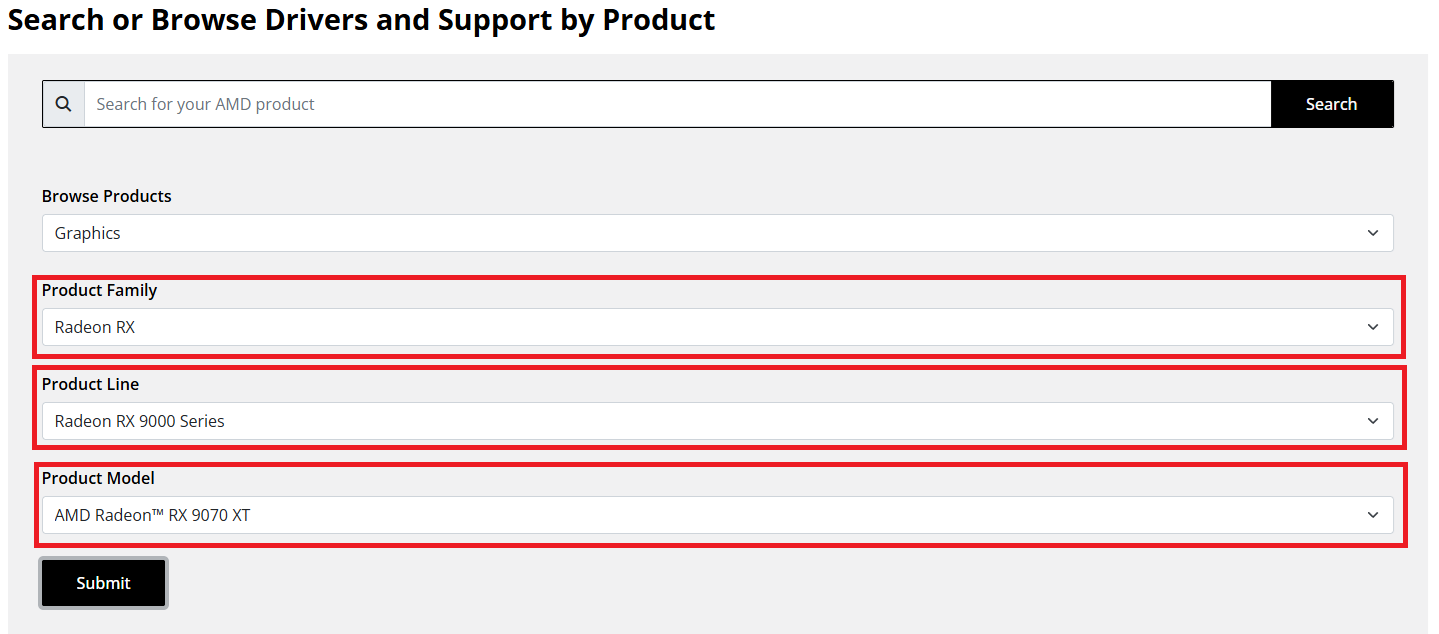
- Go to the AMD Drivers and Support page and open the driver page for your GPU
- Scroll down past the downloads and select Previous Versions
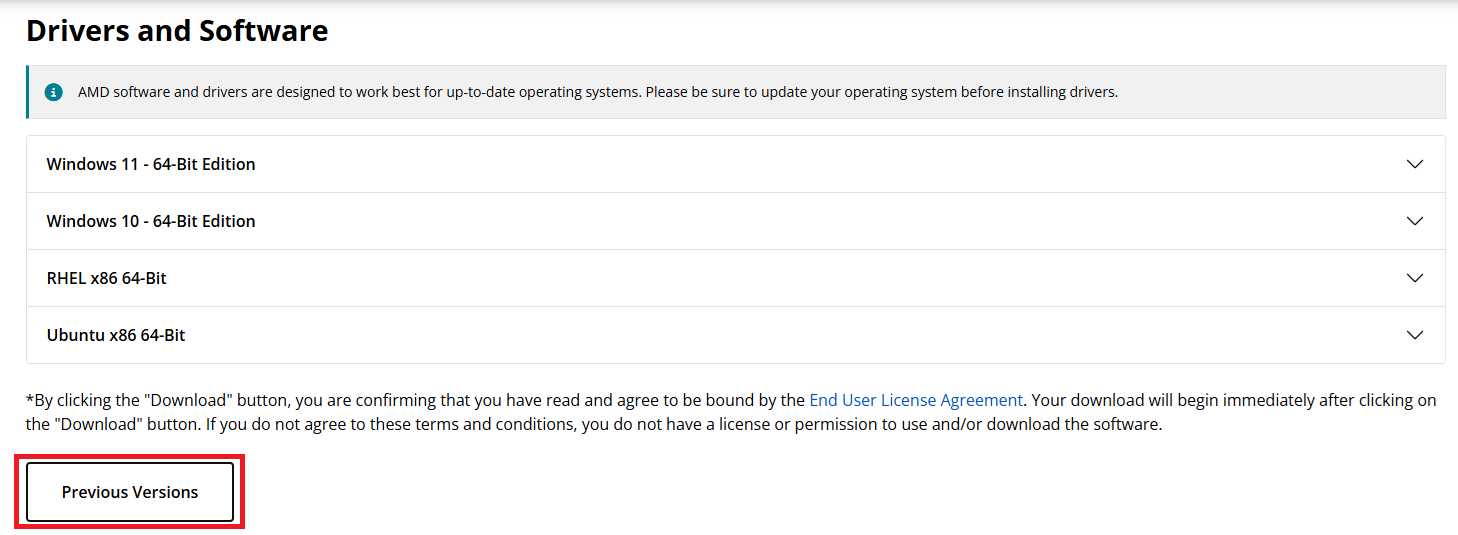
- Under Windows 11 or Windows 10 (whichever you have), find a driver with a Release Date from before the crashes started
- Pick one labeled Recommended when you can
- Select Download

STEP THREE: CLEAN AND INSTALL THE OLDER DRIVER
- Clean your current driver by following Step One and Step Two of How to use DDU to clean GPU drivers, then come back here
- Open the older driver you downloaded and install it with Additional Options > Factory Reset > Custom Install, the same way as Step One of How to update AMD drivers using AMD Software
- Restart your PC
STEP FOUR: TURN OFF AUTOMATIC UPDATES
- Search for AMD Install Manager in the Start menu and open it
- At the bottom, uncheck Automatically keep AMD software up to date
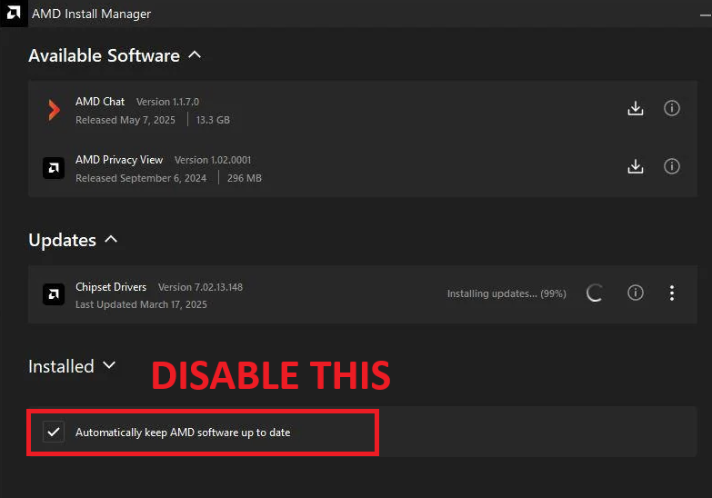
⚠️ WARNING: IF AUTOMATIC UPDATES STAY ON, AMD SOFTWARE CAN PUT THE DRIVER THAT GAVE YOU TROUBLE RIGHT BACK. DO NOT CLICK NEW DRIVER AVAILABLE UNTIL AMD RELEASES A DRIVER NEWER THAN THAT ONE!
IF THE CRASHES KEEP COMING BACK
If you still get crash reports after the steps above, these are the next things to check:
- How to scan and repair Windows system files
- How to test your RAM with MemTest86
- How do I keep my PC's drivers up-to-date?
- As a last resort, a fresh copy of Windows: How to reinstall Windows 11
If you have worked through the steps above and are still stuck, reach out to our support team with your order number and what you have already tried, and we will pick it up from there.