.png)
How do I keep my PC's drivers up-to-date?Updated 3 months ago

Drivers are the software that lets Windows talk to your hardware, everything from your graphics card to your audio, network, and USB ports. Keeping them up to date is one of the easiest ways to maintain performance and stability, fix bugs, and get the best support for new games and applications.
Windows will install generic drivers on its own, but they leave performance on the table and can cause issues down the road. For full performance and stability, you'll want the proper drivers straight from the manufacturer. Don't worry, the tools make this easy, and this guide will point you to the right one for your system.
This guide covers which drivers to update, what order to install them in, and how often to check for updates.
WHAT YOU WILL NEED
- Your PC connected to the internet
- About 15-30 minutes
- A restart or two along the way
THE ORDER MATTERS:
When updating drivers (especially after a fresh Windows install), always go in this order:
- Motherboard drivers first - These cover your chipset, audio, network, and USB. They're the foundation everything else sits on.
- Graphics drivers second - This is what your GPU needs to run games and apps at full performance.
If you're just doing routine maintenance on an already-running system, the order is less critical, but it never hurts to stick to it.
MOTHERBOARD DRIVERS:
Each motherboard manufacturer has its own tool that scans your system and installs the latest drivers automatically. Find your motherboard brand below and follow the matching guide:
ASUS
- Use ASUS DriverHub to scan and install the latest drivers.
- Full guide: How to update drivers via ASUS DriverHub
ASROCK
- Use ASRock App Shop + Live Update to scan and install the latest drivers.
- Full guide: How to update drivers via ASRock Live Update
MSI
- Use MSI Center to scan and install the latest drivers.
- Full guide: How to update drivers via MSI Center
-
TIP: When using these tools, stick to items labeled as drivers. Drivers will typically include words like INF, Chipset, Audio, LAN, Ethernet, VGA, Graphics, SATA/RAID. Skip anything labeled as a utility, demo, or unrelated software.
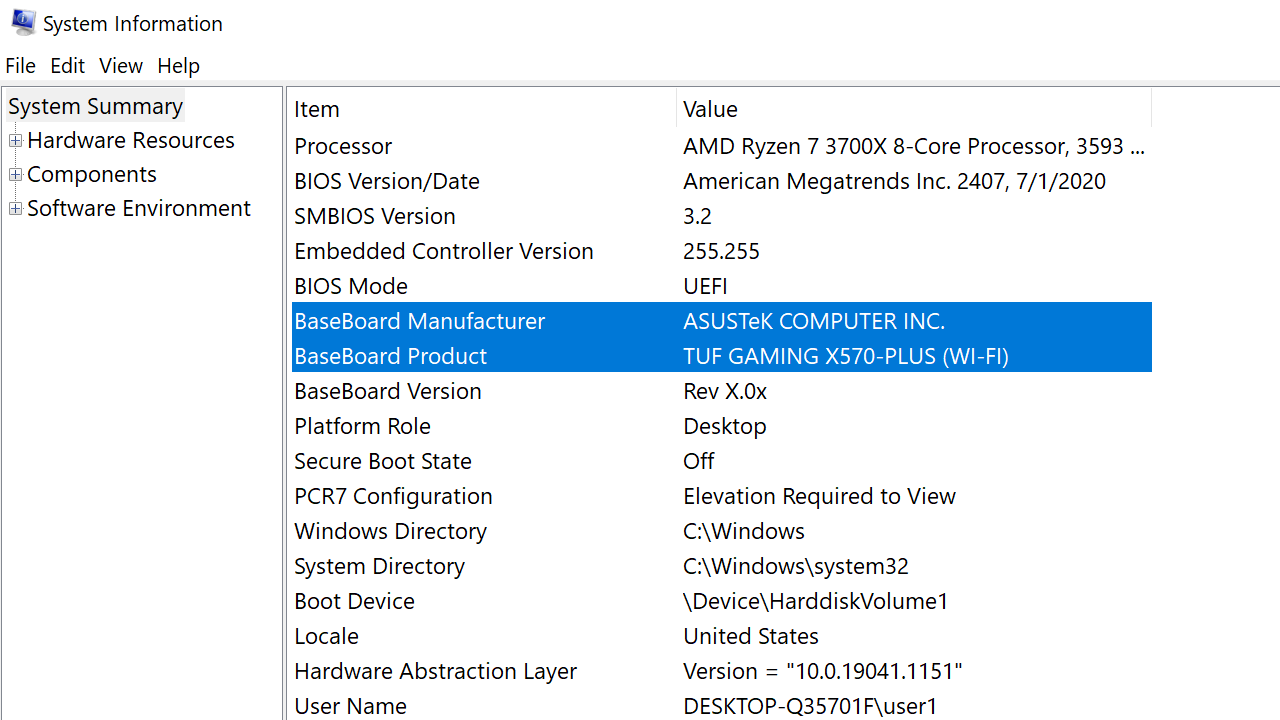
Not sure which motherboard you have? Press the Windows key, type System Information, and open it. Your motherboard model is listed under Baseboard Product.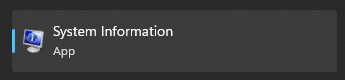
Once your motherboard drivers are installed and you've restarted, please move onto your graphics drivers below.
GRAPHICS DRIVERS:
Your graphics drivers are the ones you'll update most often. New releases bring performance improvements, bug fixes, and day-one support for the latest games. Find your GPU brand below:
NVIDIA
- Use the NVIDIA App to download and install the latest Game Ready or Studio driver.
- Full guide: How to update Nvidia drivers using the Nvidia App
AMD
- Use AMD Software: Adrenalin Edition to check for and install the latest driver.
- Full guide: How to update AMD drivers using AMD Software
Not sure which GPU you have? Press Ctrl + Shift + Esc to open Task Manager, click the Performance tab, and select GPU. The name is shown in the top-right corner.
HOW OFTEN SHOULD I UPDATE?
You don't need to check for updates every day. A simple routine keeps you covered:
- Graphics drivers: Check about once a month, or whenever a new game you're playing launches or starts having issues. The NVIDIA App and AMD Software can notify you automatically when a new driver is available.
- Motherboard drivers: Check every few months, or after a major Windows update.
- After a Windows reinstall: Update everything, motherboard first, then graphics. Full guide: How to reinstall Windows 11
 DO NOT USE THIRD-PARTY "DRIVER UPDATER" PROGRAMS! Tools that promise to update all your drivers at once often install wrong or outdated drivers and bundle unwanted software. Stick to the official manufacturer tools linked above.
IF YOU'RE HAVING DRIVER PROBLEMS:
If you're seeing graphical glitches, crashes, or a driver that won't install correctly, a regular update may not be enough. In those cases, a clean driver installation clears out corrupted files and leftover settings:
- For NVIDIA, choose Custom installation and check Clean installation during the update.
- For AMD, check Factory Reset during a Custom Install.
- For stubborn cases, Display Driver Uninstaller (DDU) completely removes the old driver before a fresh install. Full guide: How to use DDU to clean GPU drivers
If your system is still having trouble after a clean driver install, don't panic, just reach out to our support team and we'll get you sorted.