.png)
How to Update Drivers via GIGABYTE Control CenterUpdated 2 minutes ago
GIGABYTE Control Center is GIGABYTE's app for keeping your GIGABYTE motherboard drivers up to date. This guide covers setting it up and using Update Center to grab only the drivers your PC needs.
INSTALLING GIGABYTE CONTROL CENTER
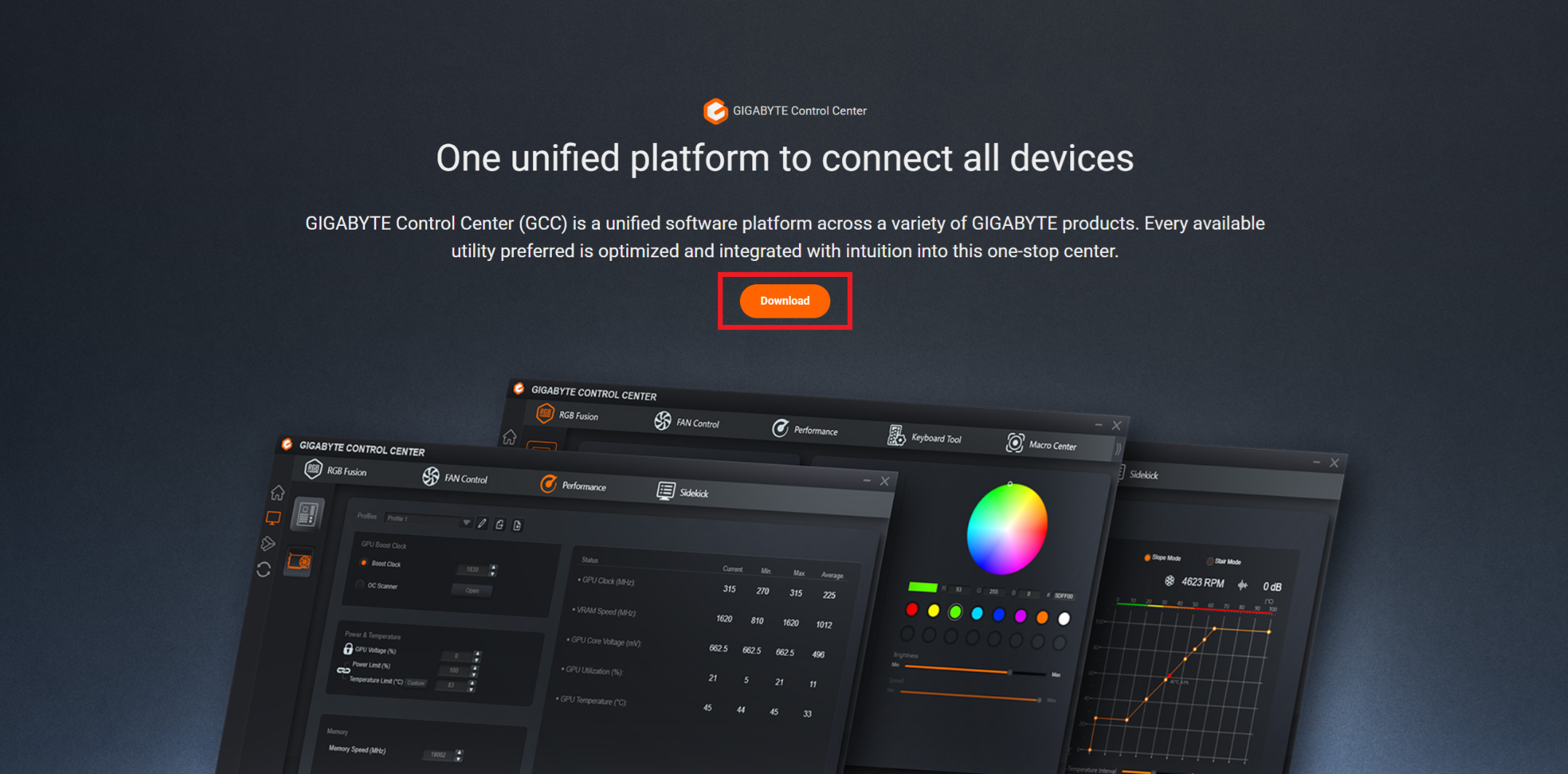
- Go to the GIGABYTE Control Center page
- Click Download on the page
- Run the installer and follow the prompts
✏️ PLEASE NOTE: If the install fails, turn off any VPN and pause antivirus or PC optimizer software, then try again.
UPDATING YOUR DRIVERS
- Open GIGABYTE Control Center
- Go to Update Center
- Wait for it to finish checking for updates
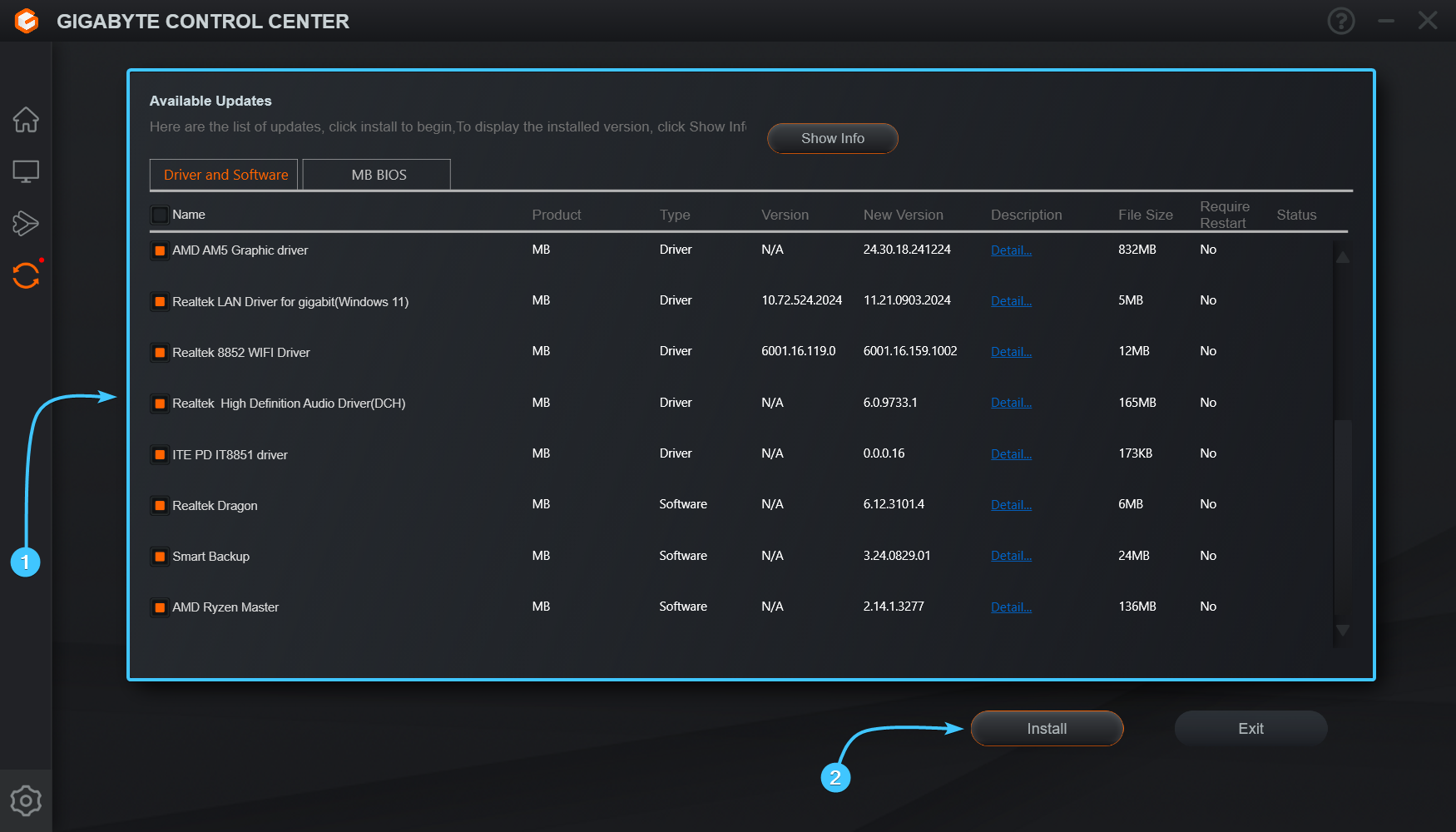
- Check only the drivers in the list
- Leave BIOS updates, GIGABYTE utilities and any extra software unchecked (for BIOS, use How to update your BIOS)
- Click the install button
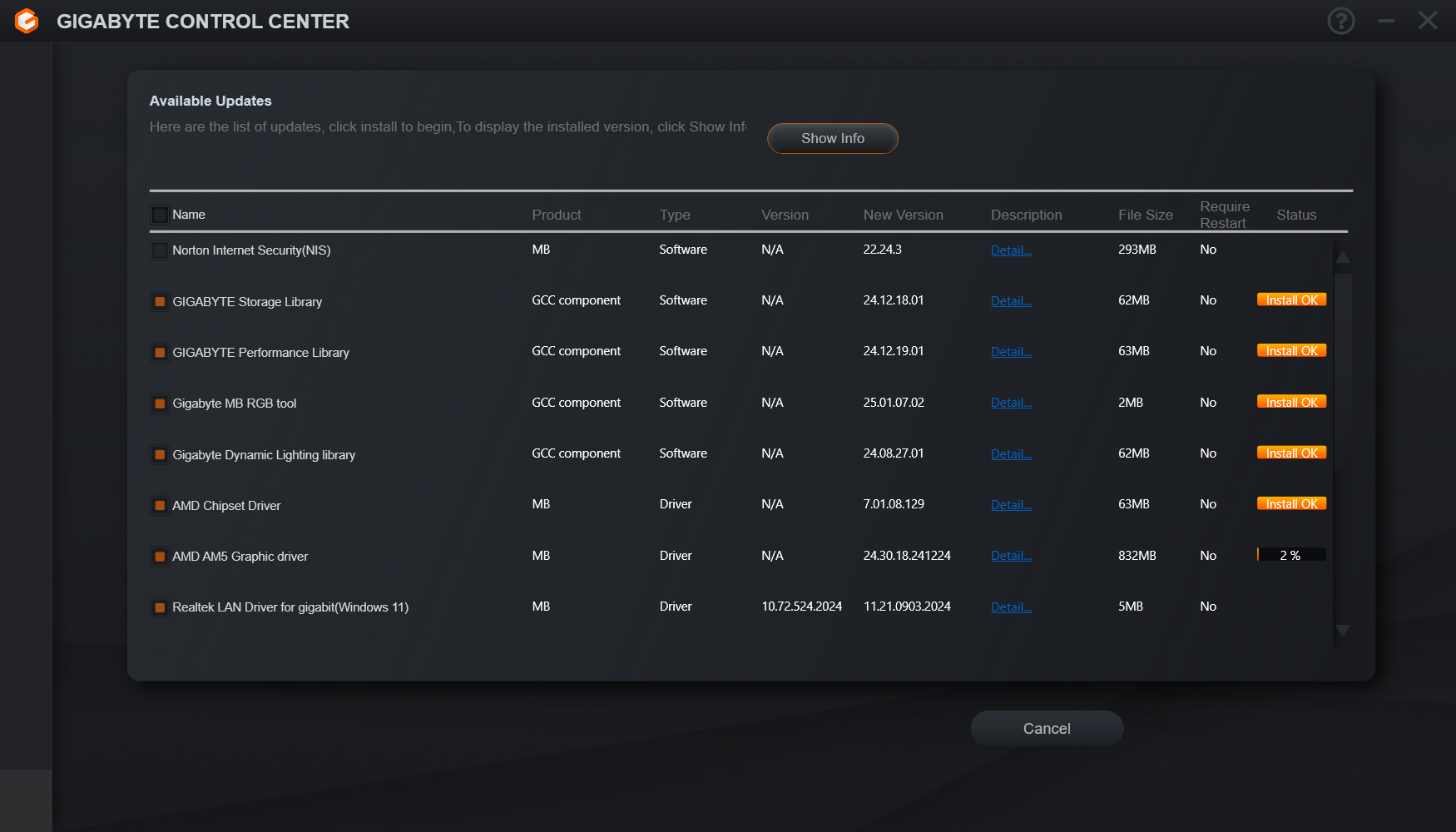
- Keep GIGABYTE Control Center open until every driver finishes installing
- Restart your PC
WHAT'S NEXT
With your motherboard drivers done, update your graphics driver next:
- NVIDIA: How to update NVIDIA drivers using the NVIDIA App
- AMD: How to update AMD drivers using AMD Software
For everything else, see How do I keep my PC's drivers up-to-date?
If you have worked through the steps above and are still stuck, reach out to our support team with your order number and what you have already tried, and we will pick it up from there.