.png)
Why am I not getting audio from my headset or speakers?Updated 4 months ago
If your gaming desktop has no audio, the issue is usually caused by a muted volume setting, the wrong playback device being selected, a loose cable, or an outdated audio driver. Follow the steps below in order to check the most common causes and restore sound to your speakers or headset.
CHECK THE VOLUME AND MUTE SETTINGS
- Look at the volume icon in the bottom-right corner of Windows.
- Make sure the volume is turned up.
- Make sure the speaker icon does not show a mute symbol.
- If you are using a headset, check the headset itself for:
- An inline mute switch
- A volume wheel
- A USB control box
- A physical mute button on the earcup
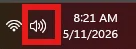
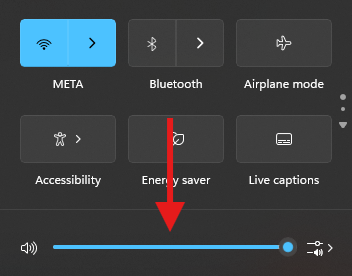
Some gaming headsets have their own built-in volume controls that work separately from Windows volume.
MAKE SURE THE CORRECT AUDIO DEVICE IS SELECTED
- Right-click the speaker icon on the Windows taskbar.
- Select Sound settings.
- Under Output, check the selected device.
- Choose the correct device, such as:
- Speakers
- Headphones
- USB headset
- Realtek Audio
- High Definition Audio Device
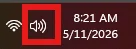
You are also able to use the Volume mixer on the bottom right to select which device you want the audio to come out on.
Left-click the speaker icon on the bottom right of the taskbar. 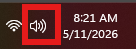
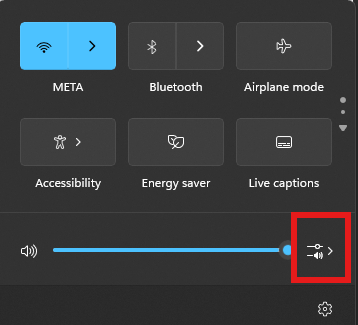
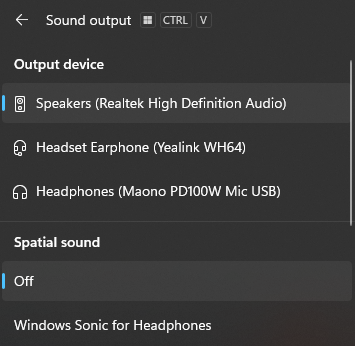
TEST THE SPEAKERS OR HEADSET IN WINDOWS
- Right-click the speaker icon on the Windows taskbar.
- Open Sound settings.
- Under Output, select your speakers or headset.
- Click the device to open its settings.
- Use the Test option, if available.
- Listen for the test sound.
If you hear the test sound, the device is working in Windows and the issue may be with a specific game, app, or browser.
CHECK THE PHYSICAL CONNECTION
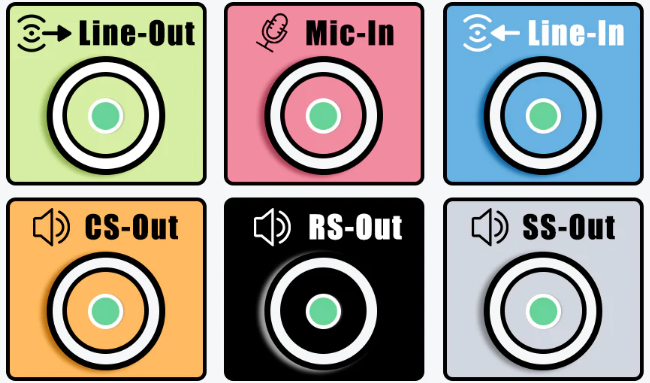
Make sure the audio cable is plugged into the correct port.
- The green port is usually for audio output.
- The pink port is usually for microphone input
- Some headsets use a single combined audio/mic plug and may require a splitter on desktops with separate headphone and microphone ports.
Try unplugging the cable and plugging it back in firmly.
For USB headsets
- Unplug the USB headset.
- Plug it into a different USB port.
- Avoid using a USB hub, if possible.
- Wait a few seconds for Windows to detect the headset.
For Bluetooth headsets
- Make sure the headset is powered on.
- Confirm it is paired with the computer.
- Check that it is connected as an audio device, not just paired.
- Disconnect and reconnect the headset if needed.
CHECK FOR AUDIO DRIVER ISSUE
- Right-click the Start button.
- Select Device Manager.
- Expand Sound, video and game controllers.
- Look for your audio device, such as:
- Realtek Audio
- High Definition Audio Device
- USB Audio Device
- NVIDIA High Definition Audio
- AMD High Definition Audio
- If you don't see your device or see a yellow Icon please follow
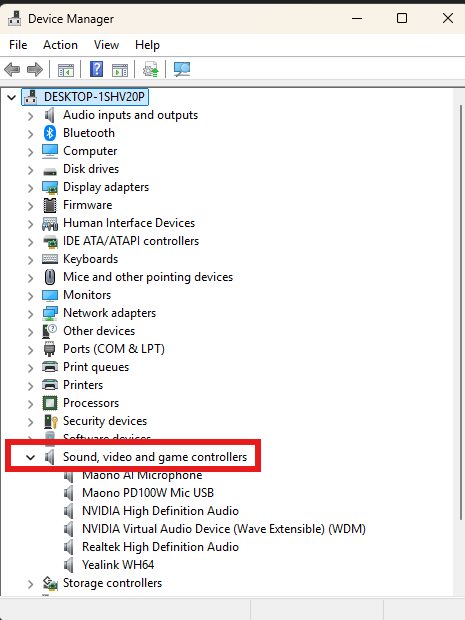
Look for warning signs
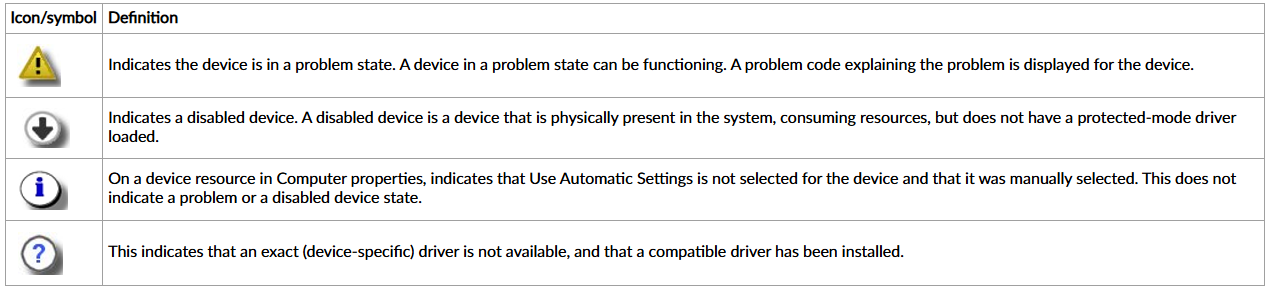
If you see an issue, please select your motherboard brand below to update drivers via our guides.
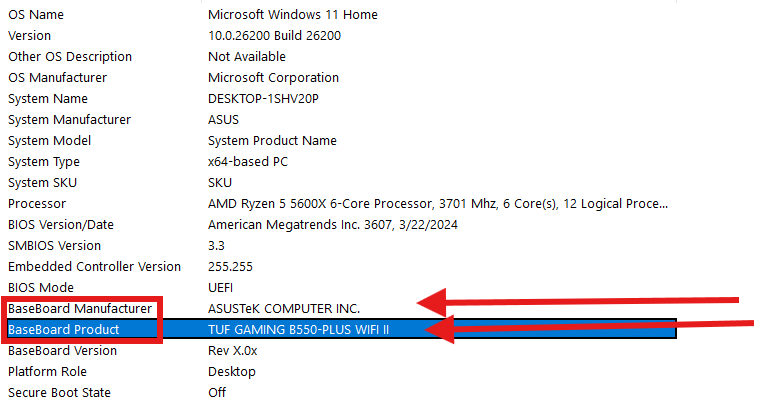
Locating the motherboard brand
- Open the Start Menu (Windows key on your keyboard or the Windows icon on your taskbar)
- Type in MSinfo
- Click on the first option System Information
- Locate BaseBoard Manufacturer or BaseBoard Product
ASUS | |
ASrock | |
MSI |