.png)
How to troubleshoot RGB lightingUpdated 7 months ago
Common RGB issues include lights not turning on, incorrect colors, flickering effects, or lighting that won’t sync properly with other components. In many cases, these problems are caused by simple things such as loose connections, software conflicts, incorrect settings, or mismatched RGB standards.
HOW DO I LOCATE MY MOTHERBOARD MODEL
Press Windows + R on your keyboard
Type "msinfo32" and press Enter
In the System Summary, look for:
BaseBoard Manufacturer
BaseBoard Product
SOFTWARE STEPS TO TRY
UPDATE RGB SOFTWARE
This should be the first thing to try out. Please click on the link corresponding with your motherboard manufacturer
| MOTHERBOARD MANUFACTURER AND RGB SOFTWARE | |
|---|---|
| ASROCK | POLYCHROME |
| ASUS | ARMOURY CRATE |
| GIGABYTE | RGB FUSION |
| MSI | MSI CENTER |
UNINSTALL RGB SOFTWARE
If you are experiencing RGB lighting issues (incorrect colors, lighting not syncing, devices not detected, etc.), multiple RGB programs may be conflicting with each other. Only one RGB control software should manage a device at a time.
STEP ONE: UNINSTALL ALL RGB SOFTWARE
Press Windows Key + X --> Select Installed Apps (or Apps & Features)
Locate any RGB-related programs (examples: Armoury Crate, iCUE, MSI Center, RGB Fusion, SignalRGB, etc.)
Click each program --> Select Uninstall
Restart the computer after all RGB software has been removed
STEP TWO: REINSTALL ONE PROGRAM AT A TIME
Download the latest version of your motherboard or device manufacturer’s RGB software from the official website
Install only ONE RGB control program
Restart the system if prompted
Test lighting functionality before installing any additional RGB software
If the issue returns after installing a second RGB program, there is likely a software conflict. Remove the additional software and use only one RGB controller.
TURN OFF WINDOWS DYNAMIC LIGHTING
- Open the start menu type "Dynamic lighting" in the search bar
- Click on the option "change lighting colors, brightness, and effects"
- Turn off "use Dynamic Lighting on my devices"
Updating BIOS is another great troubleshooting step, please follow the steps HERE on how to update BIOS
HARDWARE STEPS TO TRY
You can also try reseating the RGB cable, most headers are going to be located around the DIMM slots for the RAM sticks or on the bottom of the motherboard.
⚠ Warning: Turn off the PC, flip the power switch to "O" option on the power supply, hold the power button on your case for 10-15 seconds to discharge any remaining electricity
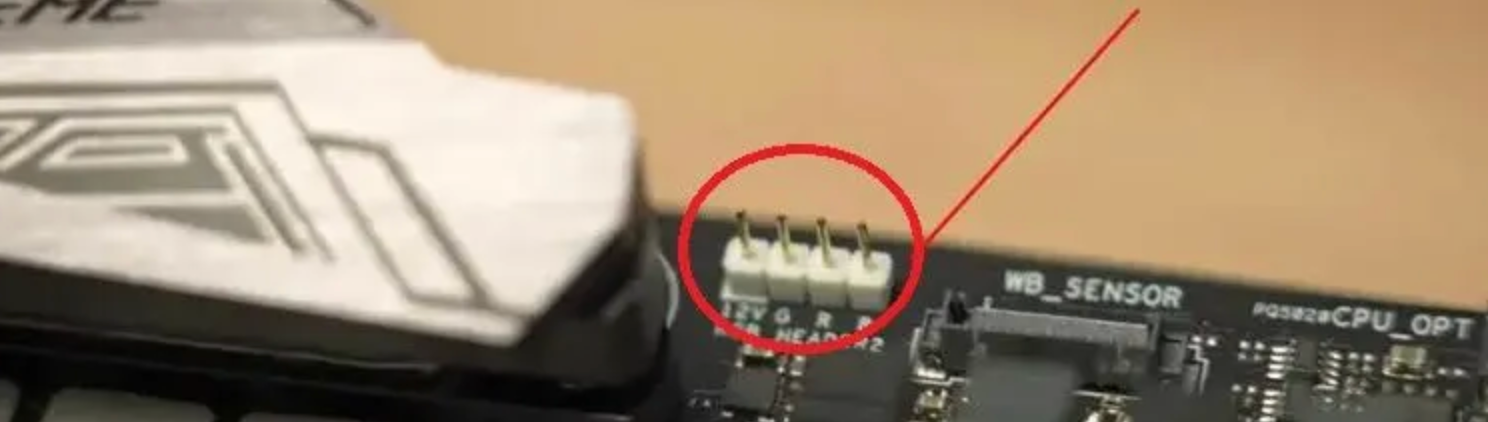
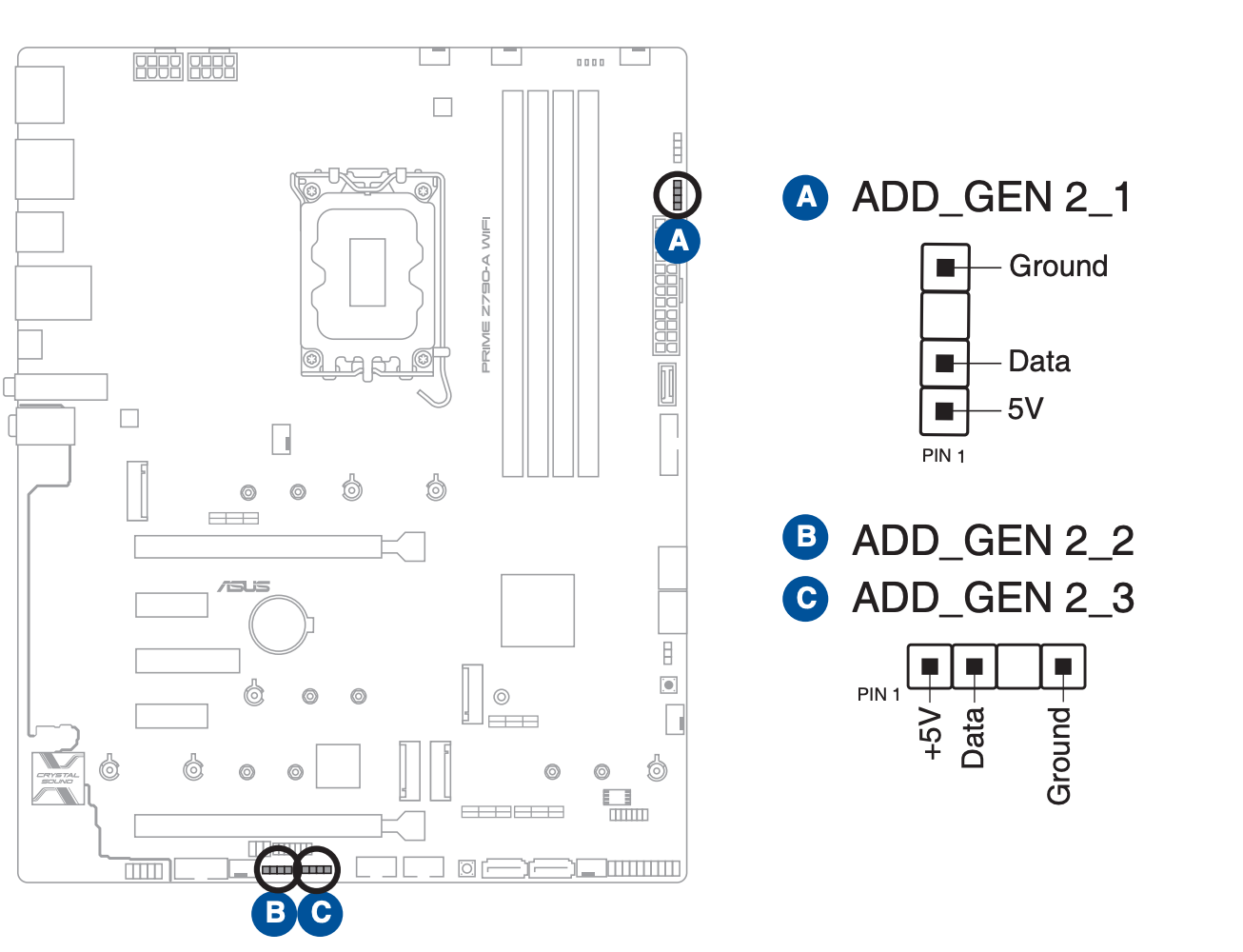 This is an example photo, your motherboards manual will show you your RGB header locations.