.png)
How to redeem an AMD game bundle on SteamOSUpdated a month ago
Got an AMD game code with your META PC? Before your game unlocks, AMD needs you to run their Product Verification Tool. On SteamOS it needs one small extra program to see your graphics card, so let's walk through getting that set up and redeeming your game.
GETTING THE TOOL
STEP ONE: SWITCH TO DESKTOP MODE
- Press the Steam button, go to Power, and select Switch to Desktop
.png)
STEP TWO: DOWNLOAD THE AMD TOOL
- Open your browser and sign in on the AMD Rewards site with your coupon code
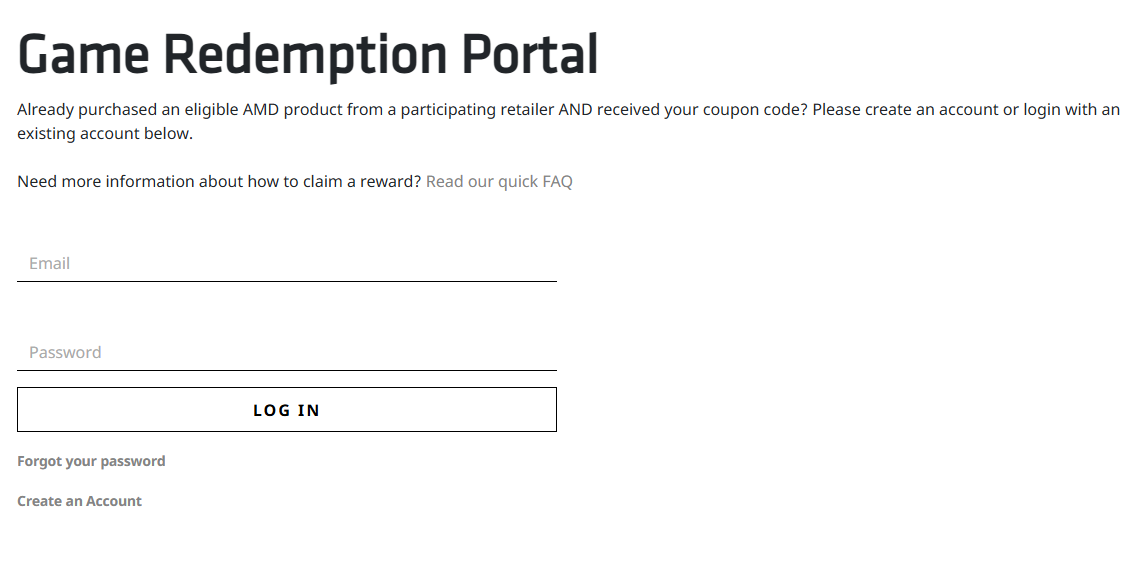
- When asked to verify your hardware, download the Linux version of the tool. It will save to your Downloads folder
- Open Downloads, right click the file, select Rename, and name it exactly pvt.sh
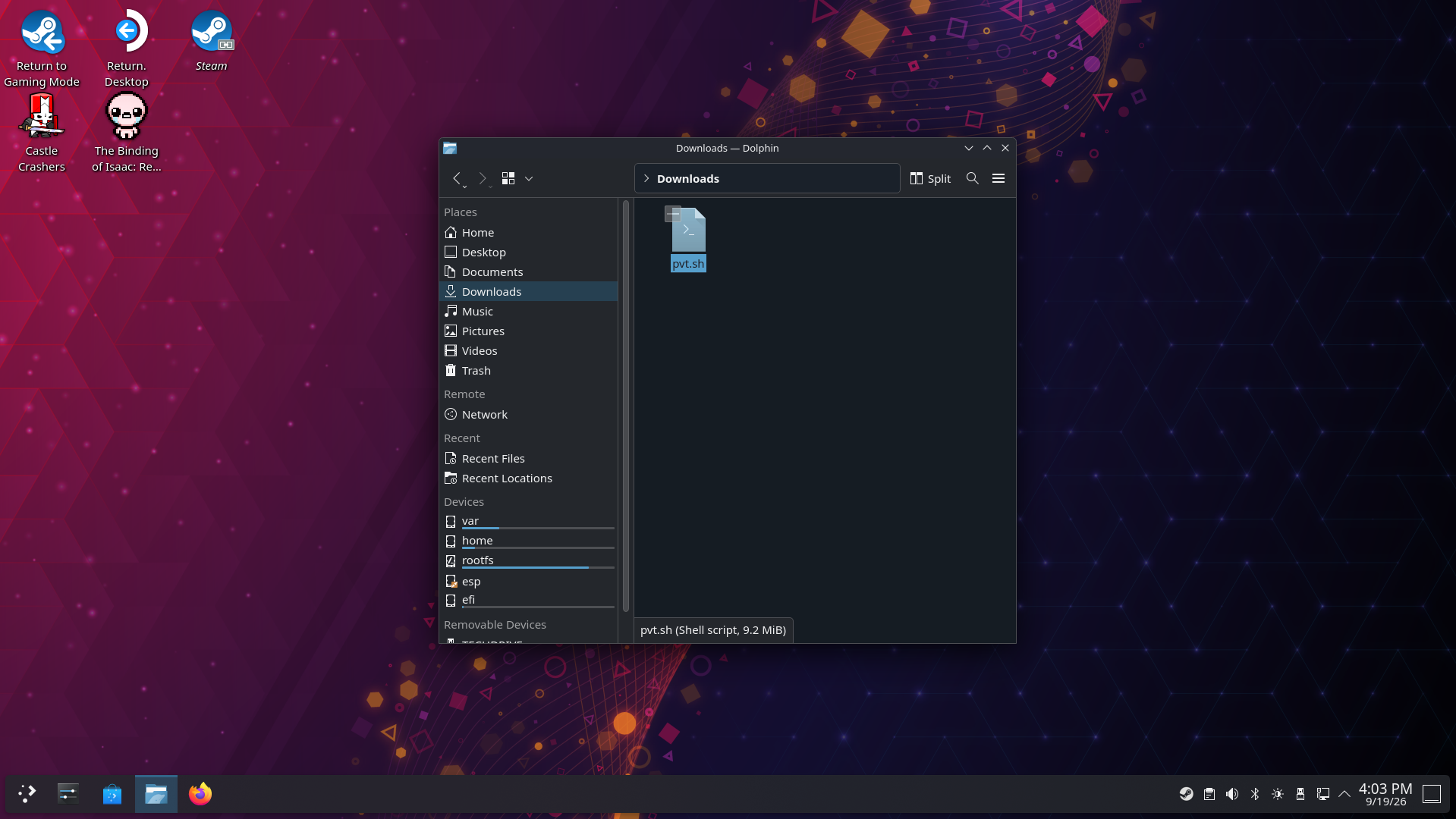
✏️PLEASE NOTE: If you downloaded it more than once, the file may be named something like pvt(1).sh. Renaming it to pvt.sh keeps the commands below working as written.
STEP THREE: OPEN KONSOLE
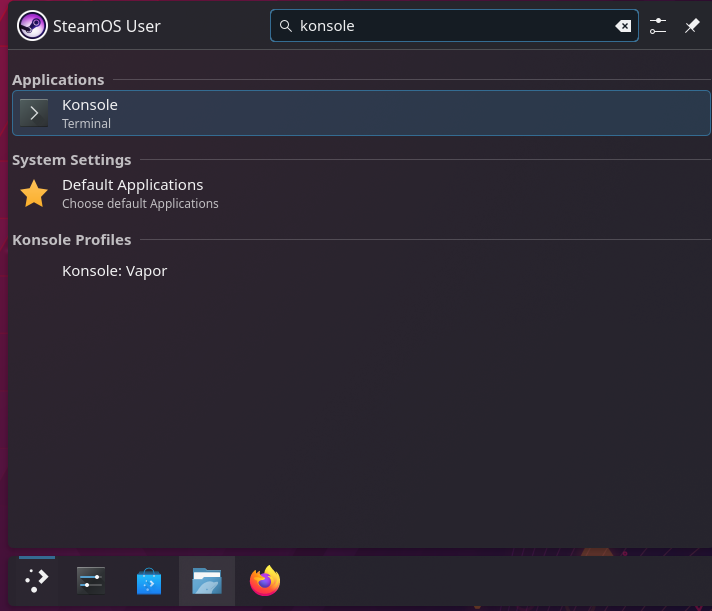
- Click the Application Launcher in the bottom left corner, go to System, and open Konsole
- To paste into Konsole, use Ctrl + Shift + V. Regular Ctrl + V will not work
- Paste one line at a time and press Enter after each
RUNNING THE VERIFICATION
STEP ONE: SET A PASSWORD
SteamOS does not have a password set out of the box, and the next steps need one. If you have already set a password before, skip to Step Two.
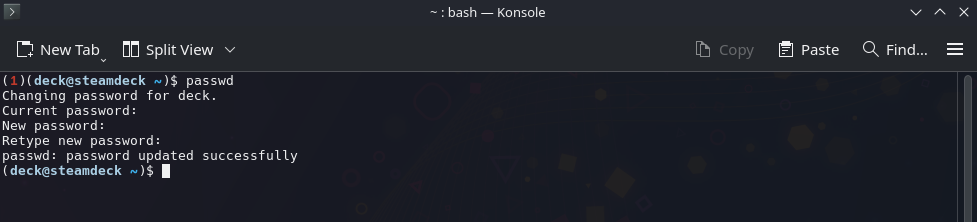
1passwd
- Type a new password, press Enter, then type it again and press Enter
- Nothing will show on screen while you type. This is normal
- You should see password updated successfully
✏️PLEASE NOTE: Pick something you will remember. You will be asked for this password several times below.
STEP TWO: INSTALL THE MISSING PROGRAM
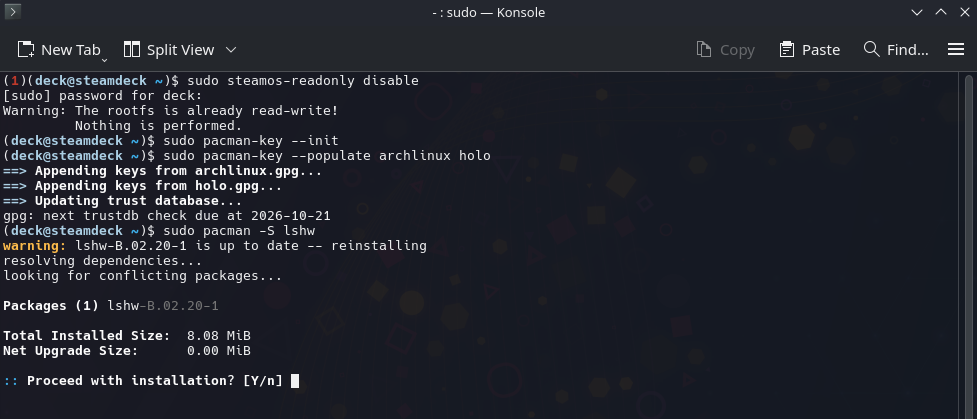
This adds lshw, the program the AMD tool uses to detect your graphics card. Enter your password if asked.
1sudo steamos-readonly disable
1sudo pacman-key --init
1sudo pacman-key --populate archlinux holo
1sudo pacman -S lshw
- When asked Proceed with installation?, type y and press Enter
STEP THREE: UNPACK THE AMD TOOL
The tool has to be unpacked into its own folder before it will run correctly. Paste these two lines:
1bash ~/Downloads/pvt.sh --noexec --target ~/pvt
1bash ~/pvt/pvt-main.sh --noexec --target ~/pvt
- Both should end with Uncompressing AMD PVT 100%

✏️PLEASE NOTE: Copy and paste both lines exactly as shown rather than typing them. Linux is case sensitive, so even a small typo like downloads instead of Downloads will stop the command from working.
STEP FOUR: RUN THE TOOL
1cd ~/pvt
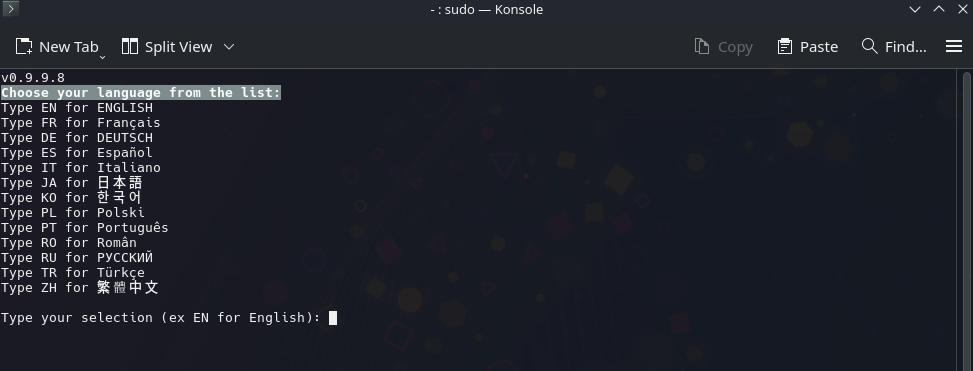
1sudo ./main
- Type EN for English, press Enter, then type y to confirm
- You should see Congratulations! AMD product is successfully validated.
- Press Enter to complete your redemption and follow any remaining prompts
.png)
✏️PLEASE NOTE: If you see "Please download the PVT file again and launch once more", the tool has already been run with your coupon code. Each copy of the tool only works once, and after your game has been redeemed, a fresh download will show this same message. If you got "Congratulations! AMD product is successfully validated" before, your redemption already went through and there is nothing more to do. If you have not redeemed yet, delete the old files with the command below, download a new copy from the AMD Rewards site, rename it to pvt.sh, and start again from Step Three: Unpack the AMD Tool:
1rm -rf ~/pvt
If a fresh copy still shows this message and your game was never redeemed, contact AMD Rewards support with your coupon code.
FINISHING UP
Once your game is redeemed, lock your system files back up:
1sudo steamos-readonly enable
That's it! You can close Konsole and head back to Gaming Mode from the desktop shortcut.
✏️PLEASE NOTE: SteamOS updates may remove lshw. If you ever need to run the AMD tool again, just repeat Running the Verification from Step Two.
Still stuck after working through the steps above? No worries, just reach out to our support team at s[email protected] and we'll help you get your game redeemed.