.png)
How to Customize Your GravaStar K98 ProUpdated an hour ago
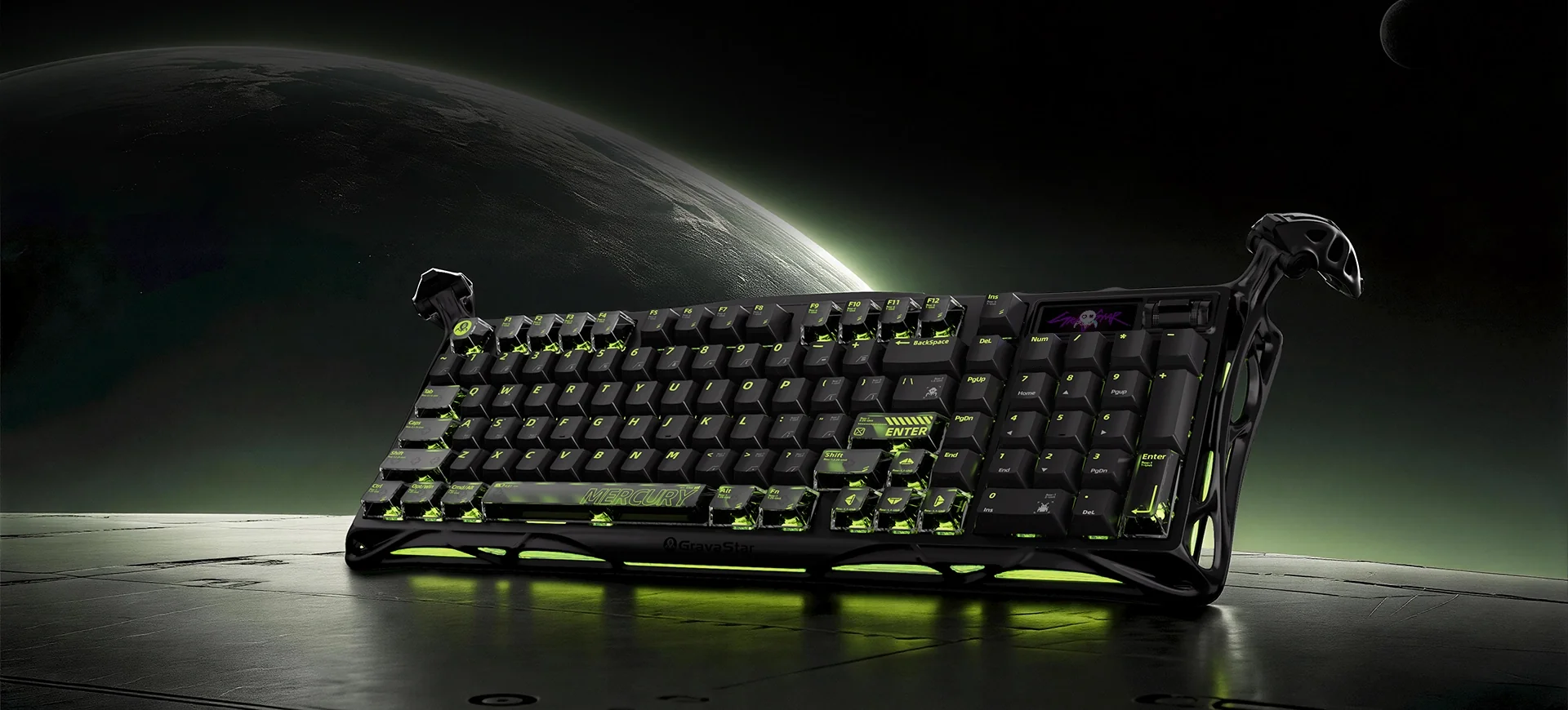 The K98 Pro can be customized through GS HUB, GravaStar's web driver. It runs right in your browser, so there's NOTHING to install. From there you can change the lighting, what shows on the screen, and what your keys do.
⚠️ WARNING: GS HUB DOES NOT WORK OVER BLUETOOTH. CONNECT THE KEYBOARD WITH THE USB CABLE OR THE 2.4G RECEIVER BEFORE YOU START. GS HUB ONLY WORKS IN CHROME, EDGE, OR OPERA. FIREFOX AND SAFARI WILL NOT DETECT THE KEYBOARD!
CONNECTING YOUR KEYBOARD
- Plug the keyboard in with the USB cable or 2.4G receiver
- Go to support.gravastar.com/k98pro in Chrome, Edge, or Opera
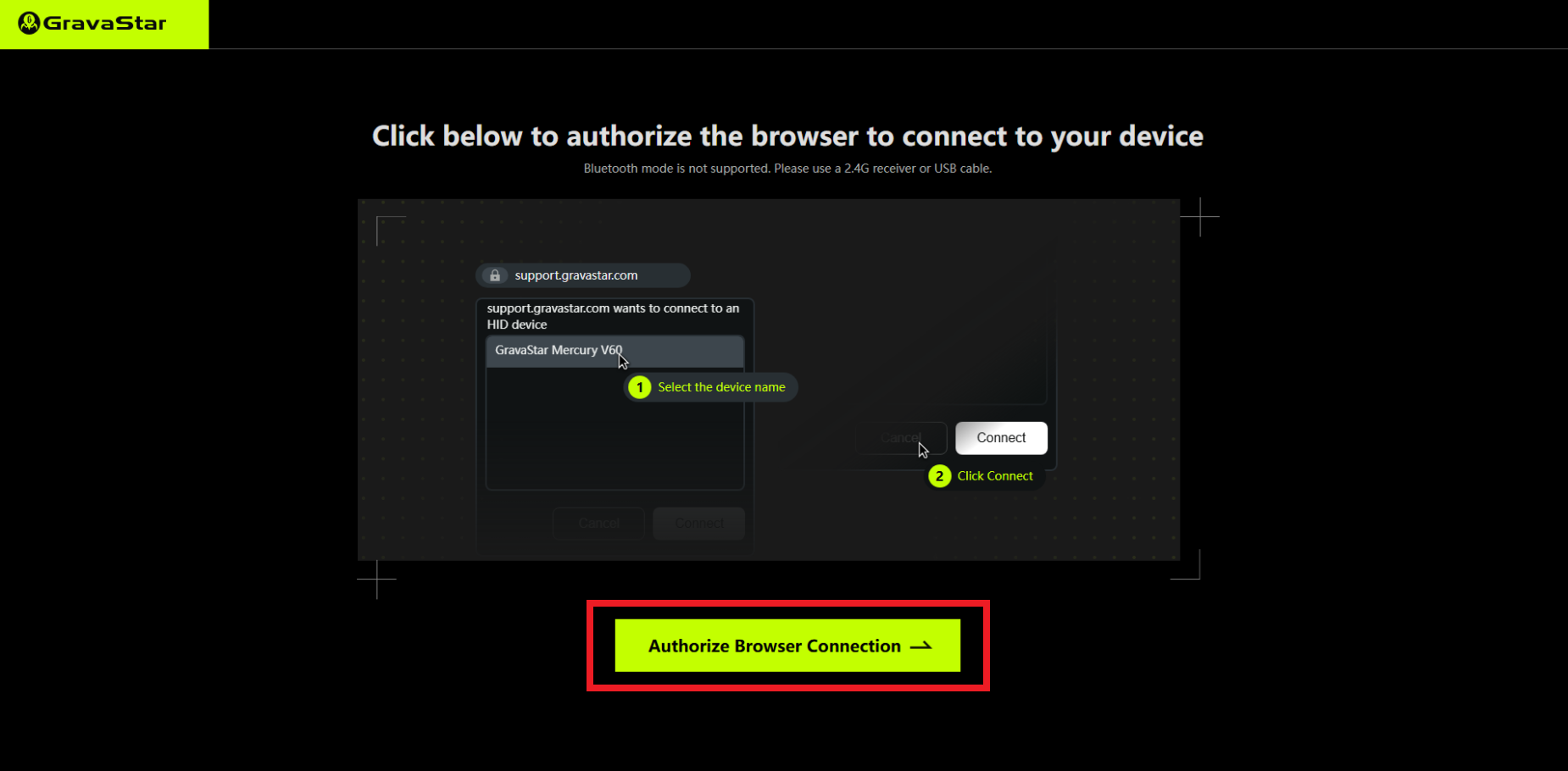
- Click the green Authorize Browser Connection button
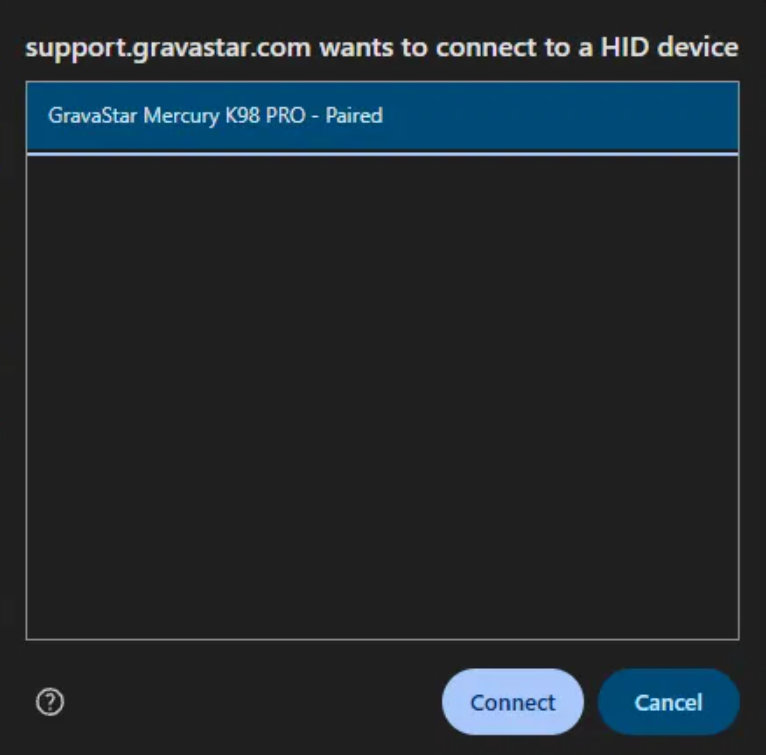
- A pop-up will appear at the top of your browser. Click GravaStar Mercury K98 PRO in the list, then click Connect
Once it connects, you will see your keyboard on screen with K98 Pro and your connection type (Wired or 2.4G) at the top. Everything below is done from the menu on the left.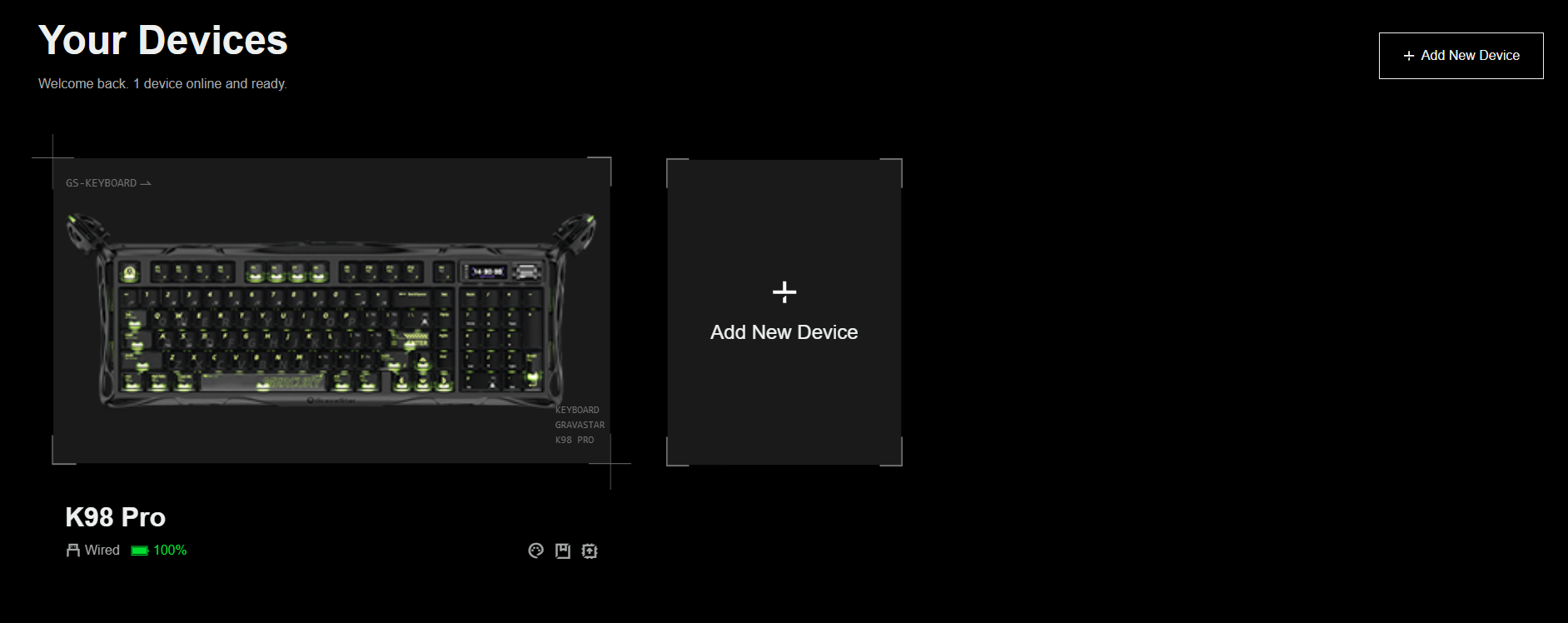
CHANGING THE LIGHTING
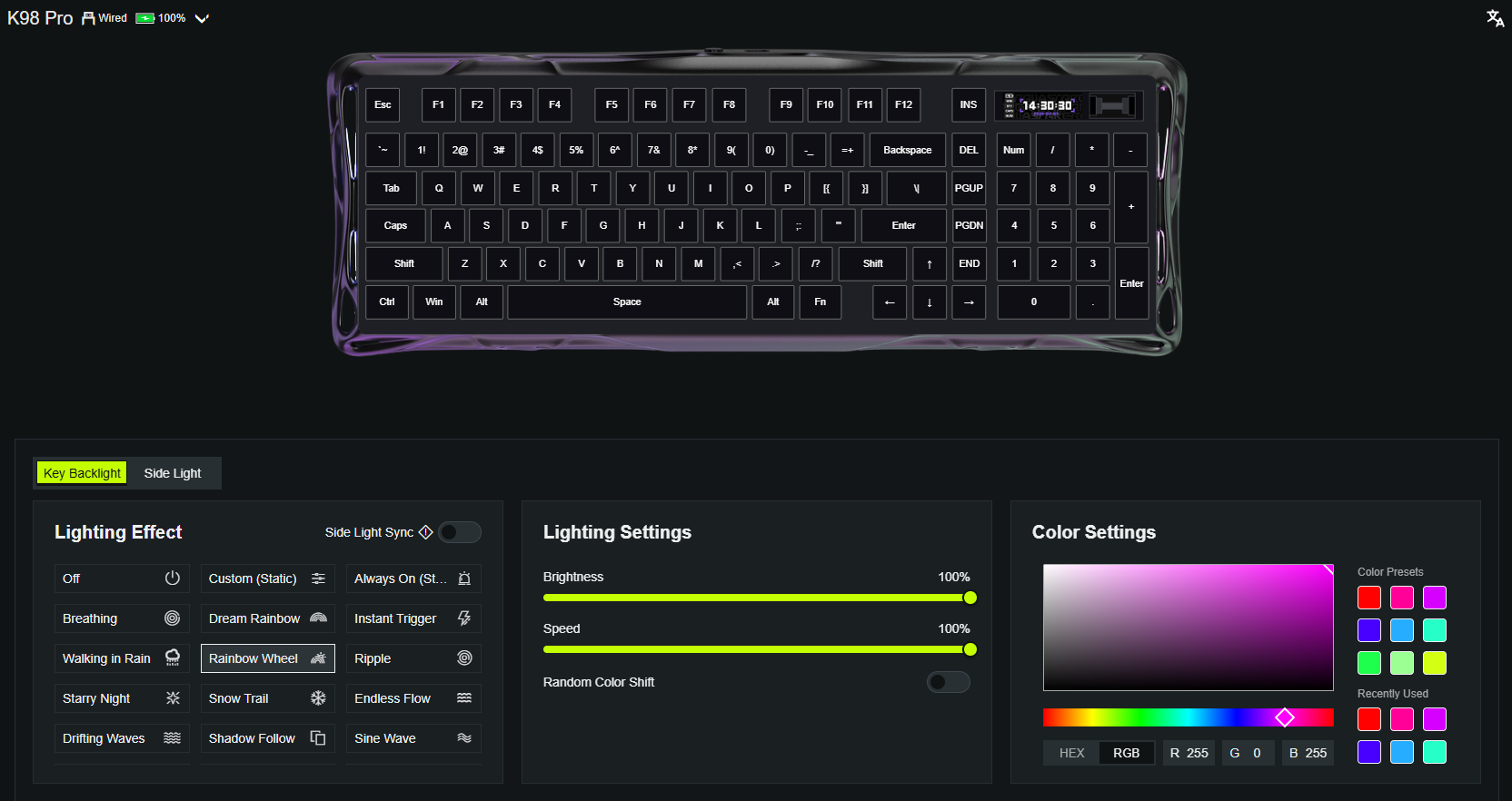
- Click Lighting in the left menu
- Pick Key Backlight or Side Light at the top, depending on which lights you want to change
- Under Lighting Effect, pick an effect like Breathing, Rainbow Wheel, or Ripple. Pick Off to turn the lights off
- Under Lighting Settings, set the Brightness and Speed
- Under Color Settings, click one of the presets or pick your own color. You can also type in an exact HEX or RGB value
- Turn on Side Light Sync if you want the side lights to match your keys
CUSTOMIZING THE SCREEN
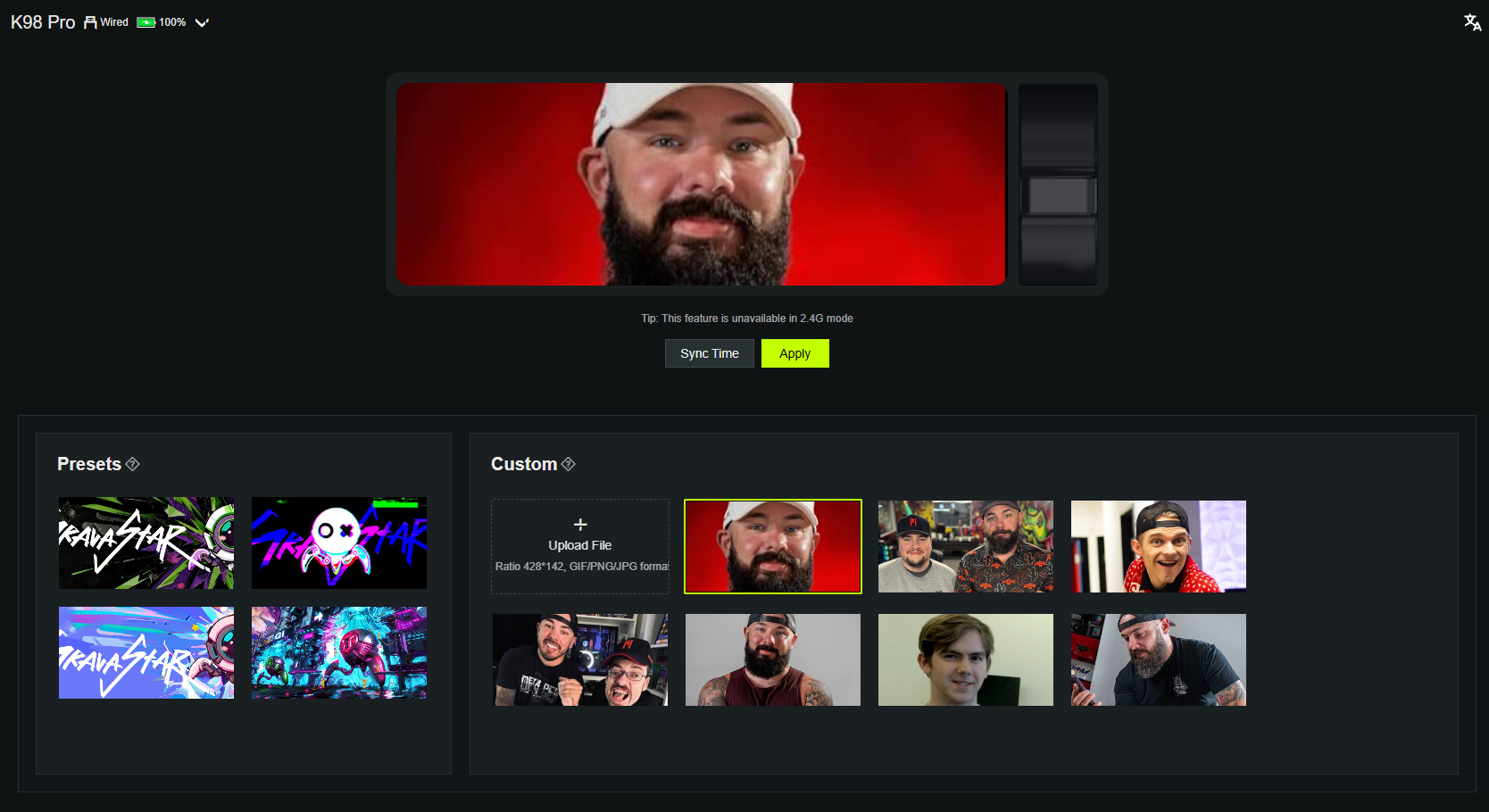
- Click Display Settings in the left menu
- Pick what you want shown on the screen and make your changes
KEYS, MACROS, AND PROFILES
The rest of the left menu covers what your keys do:
- Key Remapping lets you change what any key does
- Advanced Keys and Macros let you set up a key to do more than one thing
- Profiles lets you save different setups and switch between them
KEYBOARD NOT SHOWING UP?
- Make sure you are on the USB cable or 2.4G receiver, not Bluetooth
- Make sure you are using Chrome, Edge, or Opera
- Close any other tab that has GS HUB open, then refresh the page and try again
- Try a different USB port, ideally one on the back of the PC
If you have worked through the steps above and are still stuck, reach out to our support team with your order number and what you have already tried, and we will pick it up from there.