.png)
How to add and adjust multiple monitorsUpdated 4 months ago
Using multiple monitors in Windows 11 is a great way to improve productivity, multitasking, and your overall workflow. Whether you’re adding a second screen for work, gaming, or entertainment, Windows 11 makes it simple to connect and customize your displays. This guide will show you how to add and adjust multiple monitors for the best setup experience.
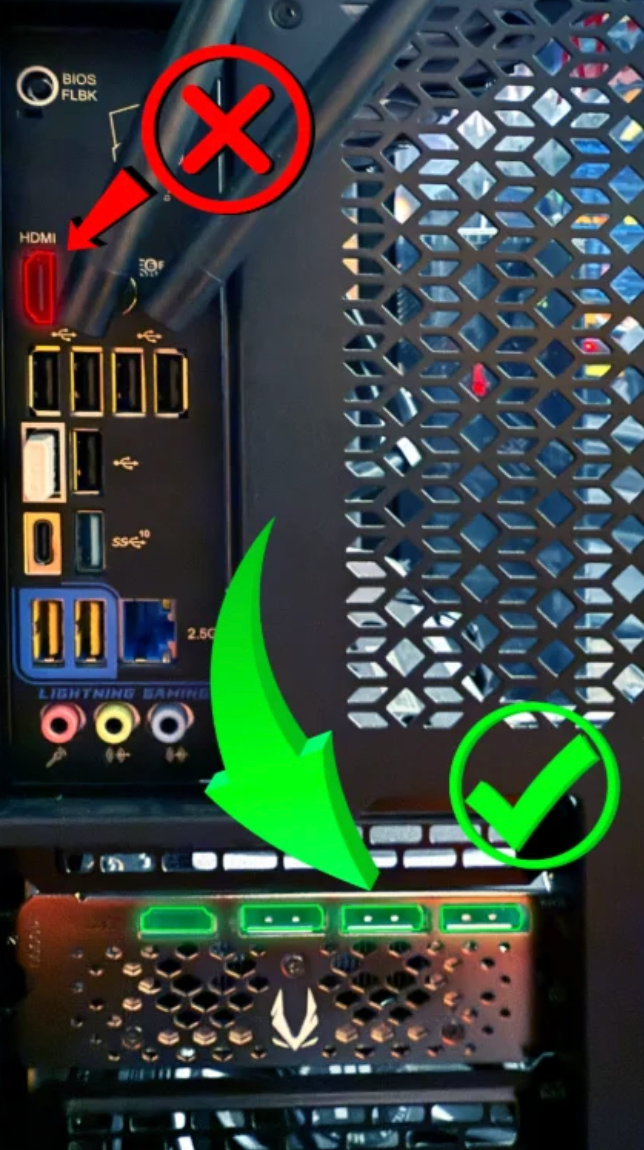
⚠ Make sure you are plugging all video cables into the graphics card, not the motherboard
ADJUSTING SETTINGS
Once all video cables are plugged into the graphics card we are now going to do some setting changes in Windows. In the display settings you will be able to adjust resolution, zoom, refresh rate, and the ability to adjust monitor positioning so the cursor can move freely between the monitors. Feel free to jump around to the sections you are wanting to adjust.
Display Settings
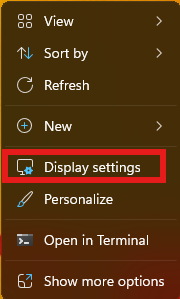
- Right-click on your desktop.
- Select Display settings.
- Under the Display section, you will see all connected monitors represented as numbered boxes.
Arrange Your Monitors
- In Display settings, drag and move the monitor boxes to match the physical position of your screens.
- Use Identify to determine what order the monitors should be in.
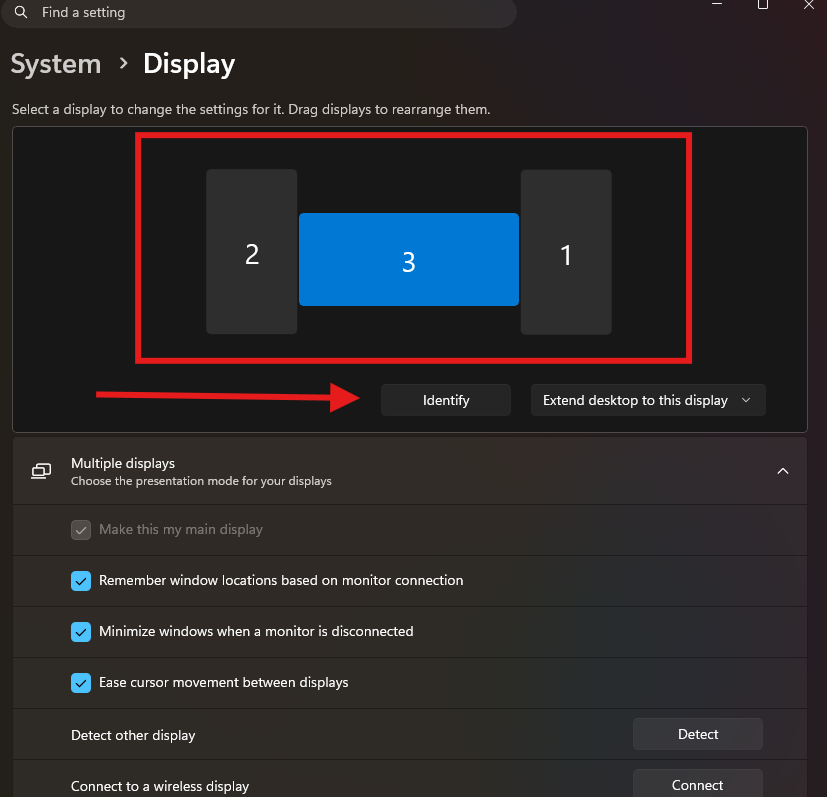
- Click Apply to save the layout.
IMPORTANT MULTIPLE MONITOR FEATURES
Main Display Setting
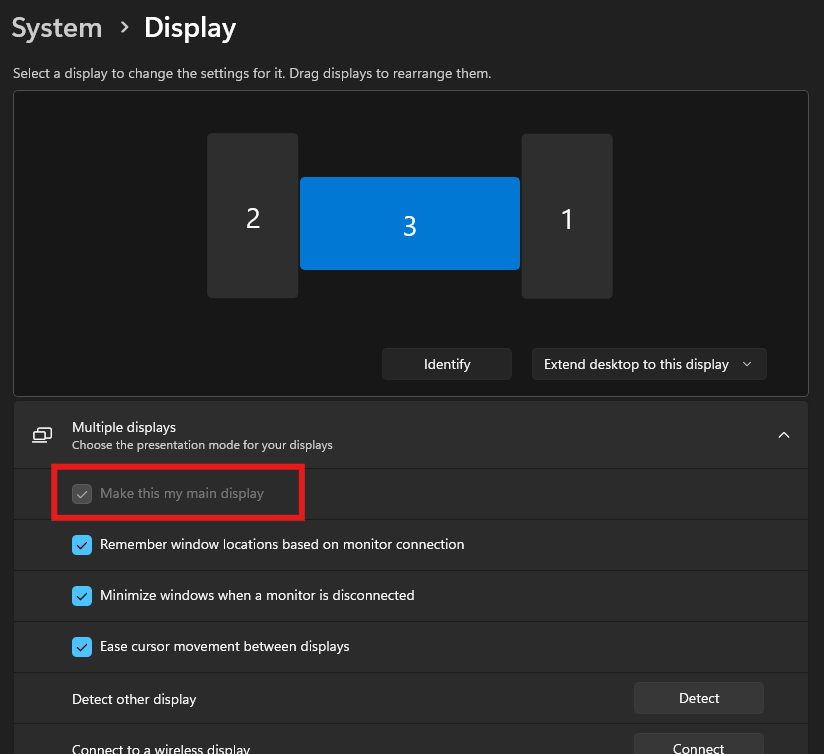
The Main Display is your primary monitor. This screen will:
- Show the taskbar and Start menu by default
- Open most apps and games automatically
- Display desktop icons
How to Change the Main Monitor
- Right-click on your desktop.
- Select Display settings.
- Select the monitor you want as the main display.
- Scroll down and check Make this my main display.
DISPLAY RESOLUTION
Resolution determines how sharp and clear the image appears on a monitor.
Common Resolutions
- 1920×1080 (Full HD)
- 2560×1440 (QHD)
- 3840×2160 (4K)
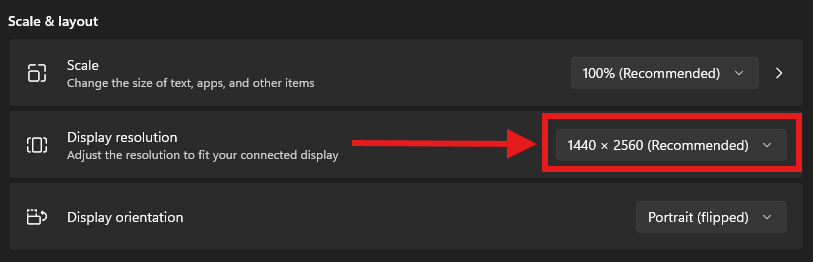
How to Change Resolution
- Right-click on your desktop.
- Select Display settings.
- Select the monitor.
- Under Display resolution, choose the recommended resolution
SCALE AND ZOOM
Example Scaling Options
- 100% — Default size
- 125% — Slightly larger
- 150% — Easier to read on high-resolution screens
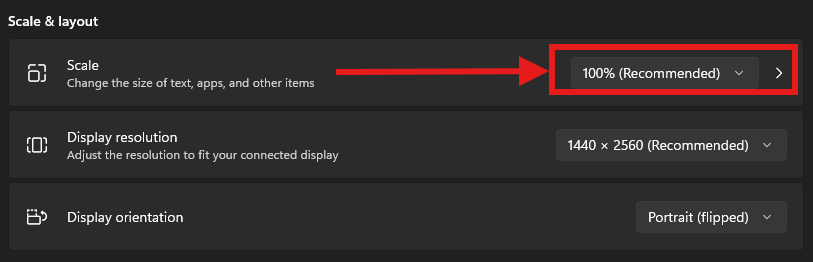
How to Adjust Scaling
- Right-click on your desktop.
- Select Display settings.
- Select a monitor.
- Under Scale, choose your preferred percentage.
EXTEND VS. DUPLICATE MONITOR
Extend These Displays
- Right-click on your desktop.
- Select Display settings.
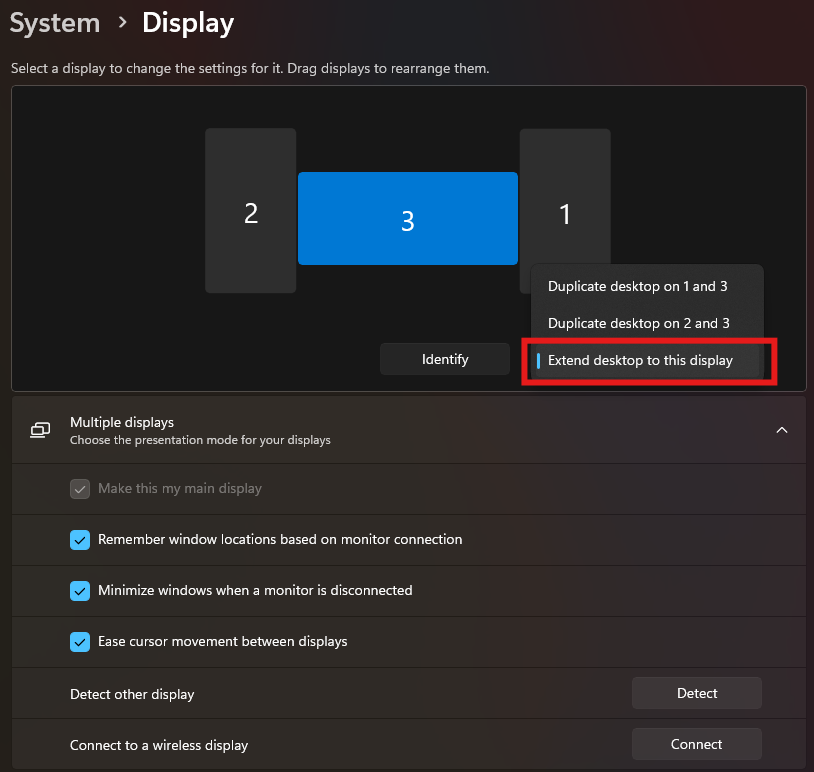
Creates one large desktop across multiple monitors.
- Best for multitasking
- Lets you move apps between screens
Duplicate These Displays
Shows the same image on all monitors.
- Useful for presentations or meetings
DISPLAY ORIENTATION
- Right-click on your desktop.
- Select Display settings.
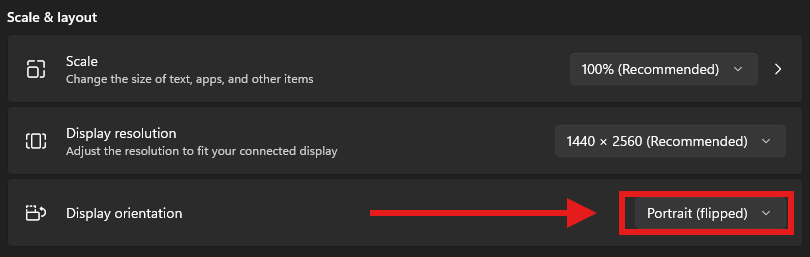
You can rotate monitors vertically or horizontally.
Options Include
- Landscape
- Portrait
- Flipped orientations
Useful for coding, reading documents, or vertical monitors.
REFRESH RATE
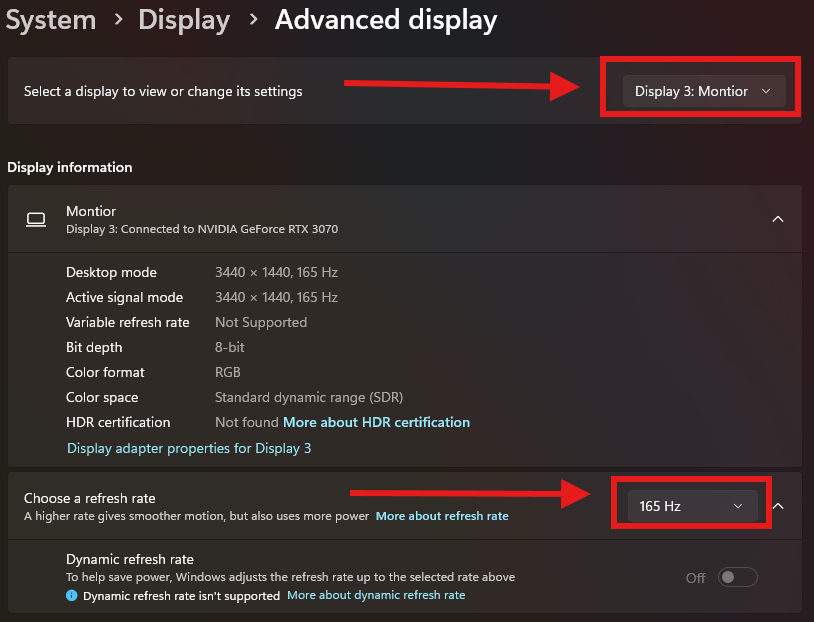
How to Change Refresh Rate
- Right-click the desktop
- Select Display settings
- Select the monitor.
- Go to:
Advanced display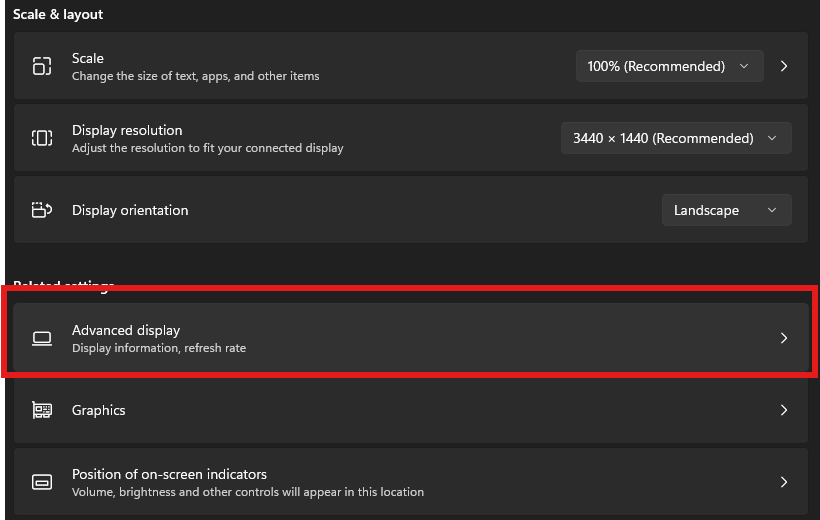
- Choose a refresh rate.
If having any trouble please contact the support team at [email protected] or call 833-638-2727 EXT 3, we are more than happy to assist!